
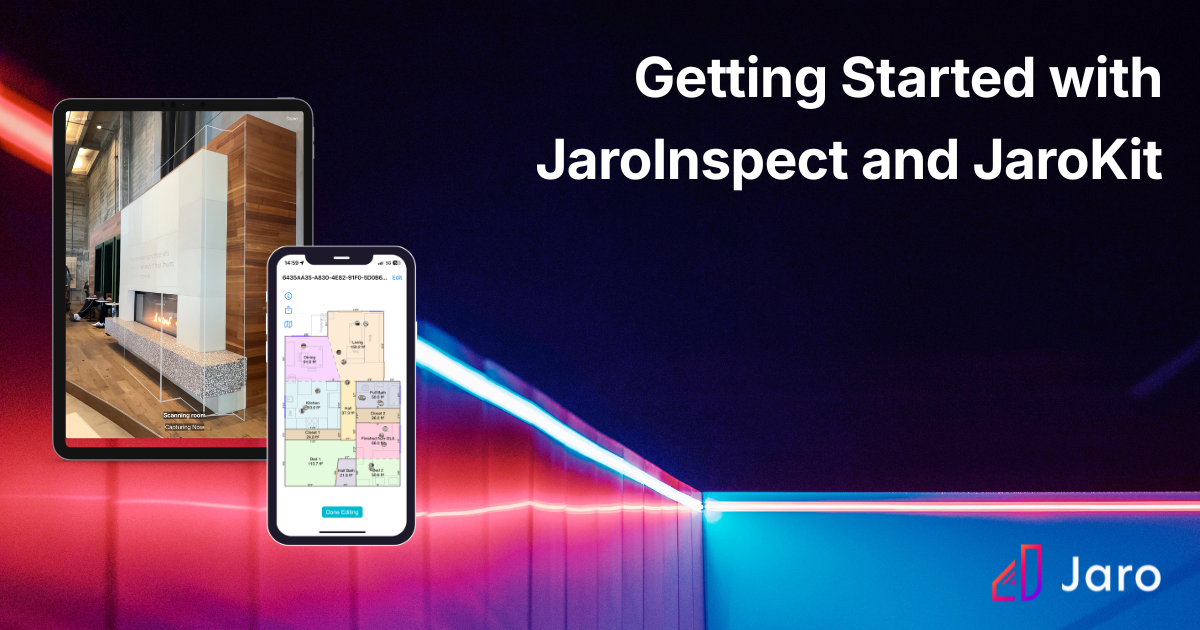
Getting Started with JaroInspect and JaroKit


Adopting new tools shouldn’t slow you down. Our goal is the opposite. With JaroInspect and JaroKit, everything is built to help appraisers work efficiently, reduce rework, and feel confident from start to finish.
If you're new to Jaro’s Inspect and Kit tools, this guide covers what you need to get going, how the workflow comes together, and where to find support when you need it.
Start with the Right Setup
A smooth experience starts with having the right equipment and setup in place.
JaroInspect is designed specifically for Apple devices that support LiDAR. An iPad Pro or a newer iPhone will give you the best results. You will also need a reliable internet connection. WiFi works well when available, but cellular data or a personal hotspot is often what keeps things moving in the field.
Before heading out, take a few minutes to set yourself up:
- Fully charge your device
- Clean the camera lens
- Make sure your inspections are downloaded ahead of time
- Confirm your order details are accurate
These small steps make a big difference once you’re onsite.
How the Workflow Comes Together
JaroInspect and JaroKit are designed to work as one connected system. What you capture in the field flows directly into your report.
At a high level, every inspection follows the same flow:
- Open your order and confirm everything is synced
- Scan each level of the property from start to finish
- Capture photos while you are moving through each room
- Fill in any remaining property details
- Submit the inspection to JaroKit
Once you submit, your data begins syncing into JaroKit. Sketches, photos, and property details all come through automatically. Some elements, like GLA calculations, may take a few minutes to fully populate, so it is best to let the system finish before making edits.
The biggest thing to remember is consistency. Scanning one full level at a time and capturing photos in the moment will save you time later.
Training That Actually Helps in the Field
Learning new technology can be frustrating if the training doesn’t match real-world conditions. That is why Jaro focuses on practical, field-ready guidance instead of generic instruction.
There are a few areas that make the biggest impact early on:
Scanning technique
Move slowly and give the device time to track the space. Make sure you are capturing floors, walls, and ceilings so the system can stay oriented.
Using your environment
Blank walls and poor lighting can cause tracking issues. Pointing at furniture or textured surfaces helps maintain accuracy during scans.
Capturing photos during the scan
Photos taken in the room while scanning are labeled automatically. This avoids extra cleanup work later.
Understanding timing
Not everything appears instantly in JaroKit. Giving the system time to sync prevents unnecessary troubleshooting or duplicate work.
When these habits click, the entire workflow feels a lot smoother.
What to Expect and How to Handle It
Even with the right setup, there are moments where things don’t behave exactly as expected. Most issues are common and easy to fix once you know what’s happening.
Here are a few you might run into:
- Sketches or data taking a few minutes to appear after submission
- Photos showing as missing during validation even though they were added
- Maps or comps not loading right away
- The app freezing or getting stuck
- In most cases, the fix is simple:
- Refresh or reload the page
- Close and reopen the app
- Reattach photos to trigger validation
- Give the system a few minutes to complete sync
These are all normal parts of working with connected systems, and they usually resolve quickly.
If something keeps happening across multiple jobs, that is when it makes sense to loop in support with details like the order number and device you are using.
What’s Available to You
Getting started with Jaro is not just about downloading an app. There is a full support system behind it.
You have access to:
- Structured onboarding guidance
- Field-tested best practices
- Troubleshooting resources based on real user questions
- Support teams for technical or device-related issues
A lot of the training and support content comes directly from what users experience day to day. That feedback loop helps improve both the product and the guidance around it over time.
Getting Comfortable, Quickly
There is always a learning curve with something new. The difference with Jaro is how quickly things start to feel familiar.
Once you get comfortable with scanning, photo capture, and letting the system do its part, the process becomes more predictable. You spend less time fixing issues and more time focusing on the report itself.


.webp)


.webp)
